PC Maintenance Guide: How Often Should You Service Your Computer?
Most people only think about PC maintenance when something goes wrong — and by then, it’s often too late to avoid costly repairs or data loss. A proper PC maintenance guide can save you time, money, and frustration by catching small problems before they turn into big ones. Whether you use your computer for gaming, work, or everyday tasks, regular servicing keeps it running faster, cooler, and longer. In this guide, we cover exactly how often you should service your PC and what needs to be checked every single time. And if you’d prefer to leave it to the professionals, our PC servicing and PC repair services are here to help.
Why You Need a PC Maintenance Guide in 2026
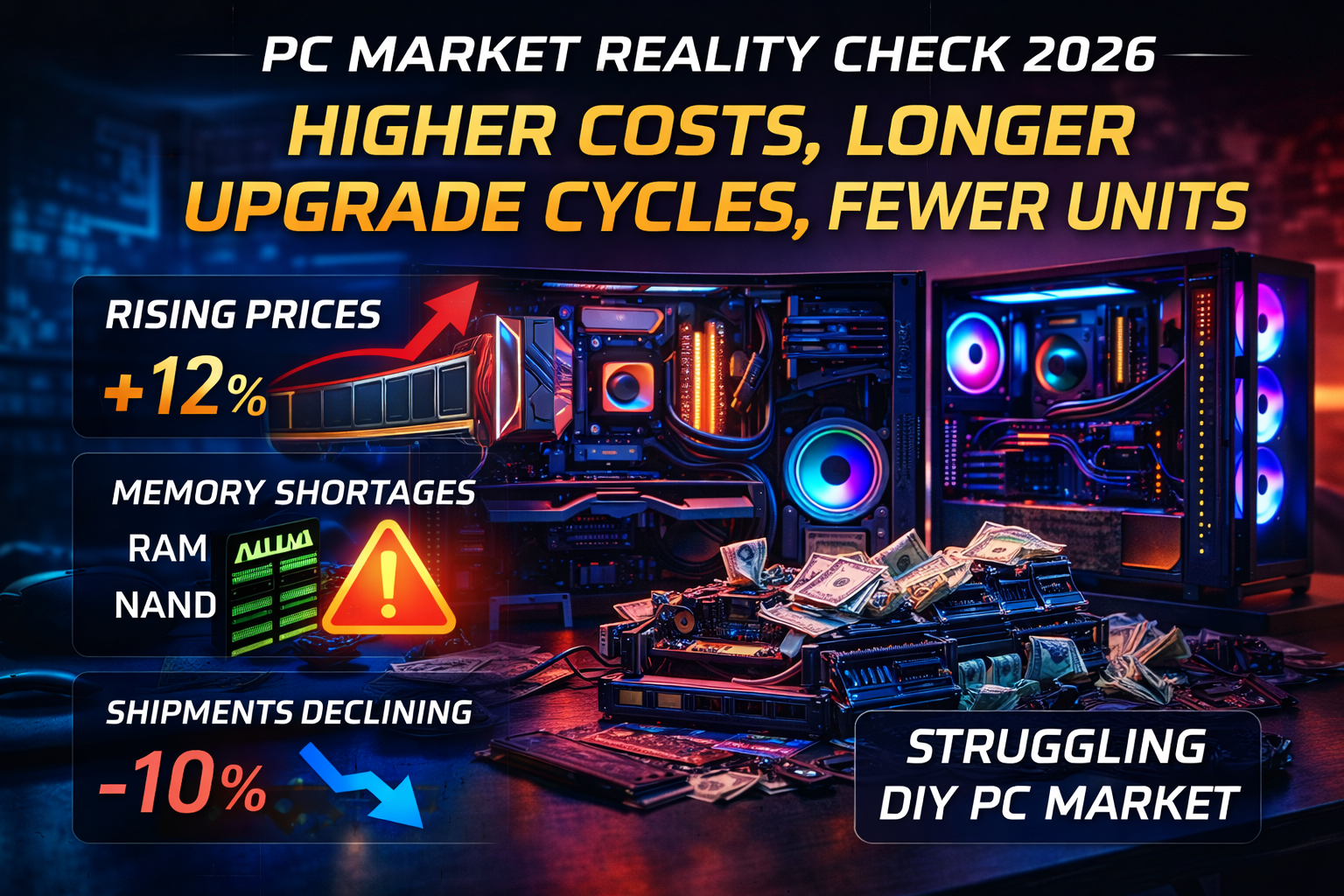
PC components in 2026 are more expensive than ever before. With RAM prices at record highs and SSD costs climbing, replacing a component that failed due to neglect is a painful and avoidable expense. Dust buildup, dried thermal paste, failing fans, and bloated software are the four silent killers of any PC — and all of them are completely preventable with a simple, consistent maintenance routine. A good PC maintenance guide doesn’t require technical expertise. It just requires knowing what to look for and when to look for it.
PC Maintenance Guide: How Often Should You Service Your Computer?
The honest answer is that different parts of your PC need attention at different intervals. Here’s a complete breakdown of what to do and when, covering everything from weekly habits to annual deep cleans:
Every 1–3 Months
- Clean dust filters and intake vents with compressed air.
- Check CPU and GPU temperatures under load using free tools like HWMonitor.
- Update drivers — GPU, chipset, and BIOS where applicable.
- Run a malware and antivirus scan.
- Check storage health using CrystalDiskInfo or similar tools.
Every 6–12 Months
- Open the case and do a thorough internal dust clean.
- Inspect all fans for wobble, noise, or failure.
- Check all cable connections and reseat RAM if experiencing instability.
- Reapply thermal paste on CPU if temperatures have risen noticeably.
- Review startup programs and remove bloatware slowing boot times.
PC Maintenance Guide: Cleaning Dust the Right Way
Dust is the number one cause of overheating in home and office PCs, and overheating is the number one cause of premature component failure. According to our PC maintenance guide, here’s how to clean your system properly without causing damage:
- Always power off and unplug your PC completely before opening the case. Never clean a powered-on system.
- Use compressed air in short bursts — long continuous blasts can spin fans too fast and damage their bearings. Hold fans in place with a finger while blowing them out.
- Pay special attention to the GPU heatsink — graphics cards accumulate the most dust and are often the first component to thermal throttle in a neglected system.
- Don’t forget the PSU — power supplies have their own internal fans and dust filters that are frequently overlooked. A clogged PSU runs hotter and is a fire risk in extreme cases.
- Clean dust filters monthly if your PC is on the floor or in a dusty environment. Filters on the front and bottom intakes are your first line of defense.
“In our experience servicing hundreds of PCs, dust buildup is behind more than half of all overheating complaints — and almost every single one of them was completely preventable.”
PC Maintenance Guide: Thermal Paste and Why It Matters
Thermal paste is the thin layer of heat-conducting compound that sits between your CPU and its cooler. Over time — typically 2 to 3 years — thermal paste dries out, cracks, and loses its ability to transfer heat effectively. When this happens, CPU temperatures rise, performance drops, and your system may begin throttling or crashing under load. Replacing thermal paste is one of the most impactful and underrated steps in any PC maintenance guide, and it costs less than $10 to do yourself. If you’d rather have it done properly, our PC servicing team handles thermal paste replacements as part of our standard service.
Signs Your Thermal Paste Needs Replacing
- CPU temperatures regularly hitting 85°C or above at idle or light load.
- System suddenly shutting down or restarting during demanding tasks.
- Performance noticeably worse than when the PC was new.
- It has been more than 3 years since the last thermal paste application.
Best Thermal Paste Options in 2026
- Noctua NT-H1 — reliable, easy to apply, non-conductive and beginner friendly.
- Thermal Grizzly Kryonaut — top-tier performance for enthusiast builds.
- Arctic MX-6 — excellent value for money, great longevity.
- Cooler Master MasterGel Maker — strong performer at a mid-range price.
PC Maintenance Guide: Software Maintenance You Can’t Ignore
Hardware isn’t the only thing that needs regular attention in a thorough PC maintenance guide. Software bloat, outdated drivers, and fragmented storage can slow your system down just as badly as dust and dying hardware. Here’s what to keep on top of on the software side:
- Keep drivers updated. Outdated GPU drivers in particular can cause crashes, poor gaming performance, and compatibility issues with newer titles. Use your GPU manufacturer’s software — GeForce Experience for Nvidia or AMD Software for Radeon — to stay current.
- Monitor your storage health. SSDs don’t give much warning before they fail. CrystalDiskInfo is a free tool that gives you a real-time health status of every drive in your system. Check it every few months.
- Manage your startup programs. Over time, installed software adds itself to your startup queue, making boot times longer and longer. Open Task Manager, go to the Startup tab, and disable anything you don’t need loading at boot.
- Reinstall Windows every 2–3 years. It sounds dramatic, but a fresh Windows install every couple of years clears out years of accumulated junk, registry clutter, and software remnants that no cleaner tool fully removes.
PC Maintenance Guide: Warning Signs You Need Professional Servicing
Some symptoms go beyond what a basic home maintenance routine can fix. According to our PC maintenance guide, here are the warning signs that it’s time to bring your PC in for a professional service:
- Random blue screens (BSODs) — especially if they’re becoming more frequent. This can indicate failing RAM, storage issues, or driver conflicts that need proper diagnosis.
- Unusually loud fan noise — grinding or rattling sounds from fans almost always mean a bearing is failing and the fan needs replacement before it stops entirely.
- Unexpected shutdowns under load — if your PC turns itself off during gaming or heavy tasks, this is a classic sign of thermal throttling or a struggling PSU.
- Significantly slower performance over time — if your PC has noticeably slowed down despite clean software, the culprit is often failing storage, degraded thermal paste, or ageing hardware that needs attention.
“Don’t wait for a full breakdown — catching these warning signs early can be the difference between a $20 fan replacement and a $300 component failure.”
PC Maintenance Guide: Annual Deep Service Checklist
Once a year, your PC deserves a full top-to-bottom service. Here’s a complete annual checklist based on our professional PC maintenance guide:
- Full internal dust clean — case, GPU, CPU cooler, PSU, and all fans.
- Thermal paste replacement on CPU and GPU if temperatures have risen.
- Full storage health check on all drives.
- RAM health test using MemTest86 to catch memory errors early.
- Cable management review — loose or pinched cables can restrict airflow.
- Operating system health check and driver audit.
- PSU inspection — check for bulging capacitors or unusual smells.
- Full backup of important data to an external drive or cloud storage.
Let Us Handle Your PC Maintenance for You
Following a consistent PC maintenance guide is the single best thing you can do to extend the life of your computer and avoid expensive repairs. But we understand that not everyone has the time, tools, or confidence to do it themselves — and that’s exactly what we’re here for. Our professional servicing team covers everything in this guide and more, from routine dust cleans to full annual service packages. Book your PC service today and keep your system running at its best all year round. You can also check out our PC build guides if you’re thinking about upgrading rather than servicing your current machine.


Limited offer
Get 10% off On your order this diwali
Join the list for build guides, price drops and early access to new PC configurations.